
Complete Guide: How to Mirror Phone Screen to Monitor (2026)
Wireless & Wired Methods for Android, iOS, Gaming, and Productivity
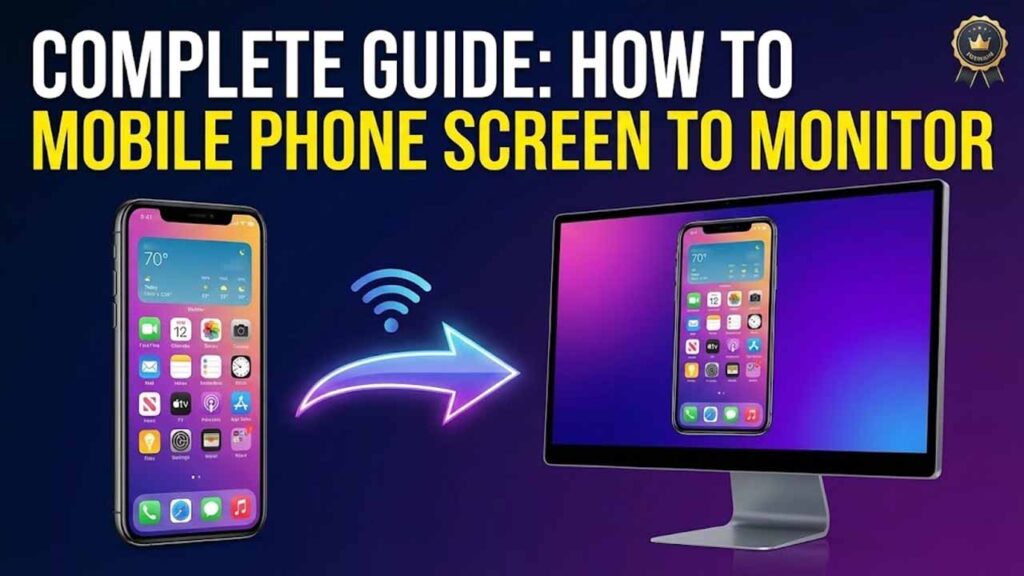
Understanding Phone-to-Monitor Mirroring
Screen mirroring allows you to display your phone’s screen on a computer monitor, TV, or projector. This technology has evolved from simple cable connections to sophisticated wireless solutions with near-zero latency. Whether for gaming, presentations, or media consumption, modern mirroring offers seamless integration.
Android
USB-C/HDMI, Miracast, Google Cast, Third-party apps
iPhone/iPad
AirPlay, Lightning/HDMI, USB-C, Reflector apps
Gaming
Low latency, controller support, high FPS
Productivity
Presentations, app demos, remote work
⚠️ Compatibility Considerations
Check your phone’s capabilities: Not all phones support all mirroring methods. Modern flagships typically offer the most options, while budget devices may have limitations.
Monitor requirements: Your monitor needs appropriate input ports (HDMI, DisplayPort, VGA) or wireless capabilities (Miracast, AirPlay 2).
Find Your Perfect Mirroring Method
Quick Method Finder
Select your primary use case:
Method Comparison Table
| Method | Latency | Quality | Ease of Use | Best For |
|---|---|---|---|---|
| USB-C to HDMI | Almost Zero | 4K @ 60Hz | Easy | Gaming, Media |
| Wireless Display (Miracast) | 50-100ms | 1080p @ 30Hz | Medium | Presentations |
| Google Cast/Chromecast | 100-200ms | 4K @ 60Hz | Easy | Media Streaming |
| AirPlay | 30-80ms | 4K @ 60Hz | Easy | Apple Ecosystem |
| Third-Party Apps | 20-150ms | 1080p @ 60Hz | Varies | Custom Solutions |
Part 1: Wired Connection Methods
USB-C to HDMI/Direct Connection
The fastest and most reliable method with near-zero latency.
For Modern Android Phones & iPhones (USB-C):
Most phones 2018+ support this feature
| Phone Type | Cable Needed | Approx. Cost |
|---|---|---|
| USB-C Phone | USB-C to HDMI cable or adapter | $15-$40 |
| iPhone 15+ (USB-C) | USB-C to HDMI cable | $20-$50 |
| Older iPhone (Lightning) | Lightning to HDMI adapter + HDMI cable | $40-$70 |
- Connect cable from phone to monitor
- Monitor should automatically detect signal
- Phone screen appears instantly on monitor
- Some phones may need to enable “USB debugging” or “File transfer” mode
💡 Pro Tips for Wired Connections
Power delivery: Some adapters can charge your phone while mirroring
Audio: HDMI carries both video and audio to monitor speakers
Resolution: For 4K output, ensure cable supports HDMI 2.0 or DisplayPort 1.4
Touch control: Some setups allow touch input from monitor (touchscreen required)
MHL (Mobile High-Definition Link) – Older Phones
For phones without USB-C DisplayPort support (mostly pre-2018).
Samsung Galaxy S7 and earlier, some Sony Xperia models
- MHL-compatible phone
- MHL adapter (micro-USB or USB-C to HDMI)
- HDMI cable
- Power source (MHL requires external power)
Maximum 1080p resolution, requires external power, limited phone compatibility
Part 2: Wireless Connection Methods
Built-in Wireless Display (Miracast)
Native wireless mirroring for Windows PCs and some smart TVs.
For Android to Windows PC:
Settings → System → Projecting to this PC → Enable “Available everywhere”
Settings → Connected devices → Connection preferences → Cast
Select your PC from the list → Accept connection on PC
For Android to Smart TV (Miracast):
TV settings → Screen mirroring/Miracast → Enable
Same as above, but select your TV instead of PC
Apple AirPlay (iPhone/iPad to Monitor)
Seamless wireless mirroring for Apple ecosystem.
- iPhone/iPad with iOS 12+
- Apple TV connected to monitor OR
- AirPlay 2 compatible smart TV OR
- Windows PC with third-party AirPlay receiver software
Swipe down for Control Center → Screen Mirroring → Select your AirPlay device
Install AirPlay receiver like “AirServer” or “Reflector” on Windows → Connect from iPhone
Google Cast/Chromecast
Best for media streaming with some screen mirroring capabilities.
Connect Chromecast to monitor’s HDMI port → Setup via Google Home app
Google Home app → Devices → Your Chromecast → Cast my screen
Higher latency than direct mirroring (100-200ms), best for media not gaming
Part 3: Software & App Solutions
Scrcpy (Android)
Platform: Android to Windows/Mac/Linux
Cost: Free, Open Source
USB/Wireless, Low latency, Keyboard/Mouse control
LonelyScreen (iOS)
Platform: iOS to Windows/Mac
Cost: Free trial, $15 license
AirPlay receiver, Screen recording, Low latency
ApowerMirror
Platform: Android/iOS to Windows/Mac
Cost: Freemium, $40/year
Wireless, Touch control, Screen recording
Scrcpy – Advanced Android Mirroring
Open-source solution developed by Genymotion for advanced users.
Setup Wizard
Settings → About phone → Tap Build number 7 times
Developer options → USB debugging → Enable
Download from GitHub → Extract → Run scrcpy.exe
Scrcpy Features:
| Feature | Benefit |
|---|---|
| USB & Wireless mode | Flexible connection options |
| 30-60ms latency | Suitable for gaming |
| Keyboard/Mouse control | Control phone from computer |
| Screen recording | Record mirrored screen |
| No root required | Works on most Android devices |
TeamViewer & Remote Desktop Apps
For remote access rather than true mirroring.
Install TeamViewer QuickSupport on phone → TeamViewer on PC → Connect via ID
Best for Windows phones or accessing PC from phone (reverse mirroring)
Higher latency (200-500ms), compression artifacts, not suitable for gaming
Part 4: Gaming & Low Latency Solutions
Mobile Gaming to Monitor Setup
Optimize for lowest latency and best gaming experience.
Best Methods for Gaming:
Controller Setup:
Samsung DeX & Huawei Easy Projection
Desktop experience from your phone.
- Samsung Galaxy S8 or newer required
- USB-C to HDMI cable or wireless DeX
- Monitor displays full desktop interface
- Run multiple apps, use keyboard/mouse
Similar to DeX for Huawei flagship phones
Part 5: Troubleshooting & Optimization
Common Issues & Solutions
| Problem | Solution | Prevention |
|---|---|---|
| No signal detected | Try different cable/port, restart devices | Use certified cables, check compatibility |
| High latency/lag | Use wired connection, reduce resolution | 5GHz WiFi for wireless, close background apps |
| Audio not working | Check HDMI audio settings, try Bluetooth audio | Test audio before mirroring |
| Black bars on screen | Adjust phone resolution/aspect ratio settings | Match phone and monitor resolutions |
| Connection drops | Move closer to router, reduce interference | Use dedicated WiFi network |
Optimization Tips:
- Use 5GHz WiFi network (less interference)
- Position router closer to devices
- Reduce other network traffic during mirroring
- Consider WiFi 6/E for best performance
Close background apps → Enable performance mode → Reduce screen resolution → Turn off battery saving
Enable Game Mode → Set correct input source → Adjust overscan settings → Update firmware
Thanks